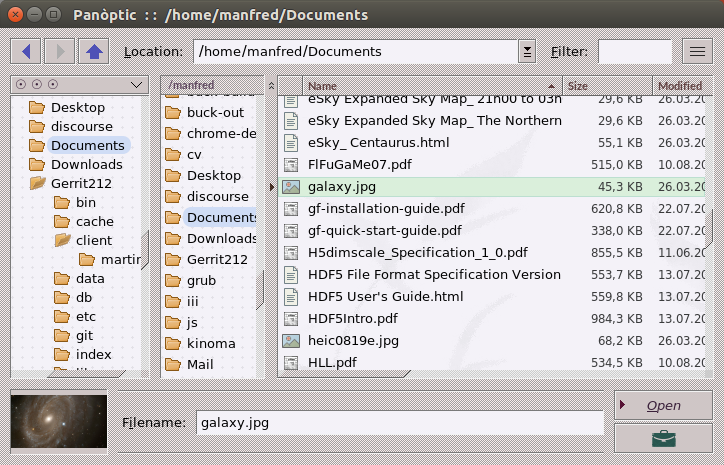
A file manager always at your side
Panòptic is not made to display slideshows of your photo albums. You will find better tools for that, more spectacular and following the latest design trends. Panòptic is humble in its presentation and old-fashioned in its design, but it doesn't care about that, because it has just one thing in mind: to help you as efficiently as possible while you are working.
To have a clear notion of which files you are dealing with is very important in any complex or distributed project, not only to avoid confusions but also to discover interesting ways of combining your data at the sight of the files you have around. Nothing better for that purpose than keeping your file manager open in corner of the screen, so that it can help you instantly when you need some information. But standard managers don't allow for that, because they are either too voluminous to stay open all the time or too messy to be read from afar.
Panòptic has been designed to integrate smoothly into your application landscape, so as to become a static component of your screen and remain constantly available for whatever tasks you are performing. It keeps a reference to your key files and folders without encumbering the screen and can thus provide you valuable information while you are working. It's an eye steadily open over your file system, telling you at any moment what's going on and helping you thereby to stay in context and coordinate your different activities.

A compact interface with instant graphical representation
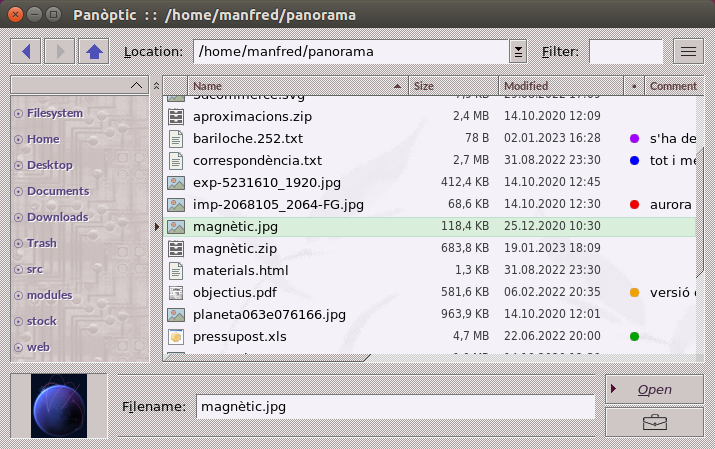
We work usually with a bunch of files, which are sometimes very similar to each other, so it's not always easy to recognize them at the first sight. How many times have we opened another file than the one we were after?
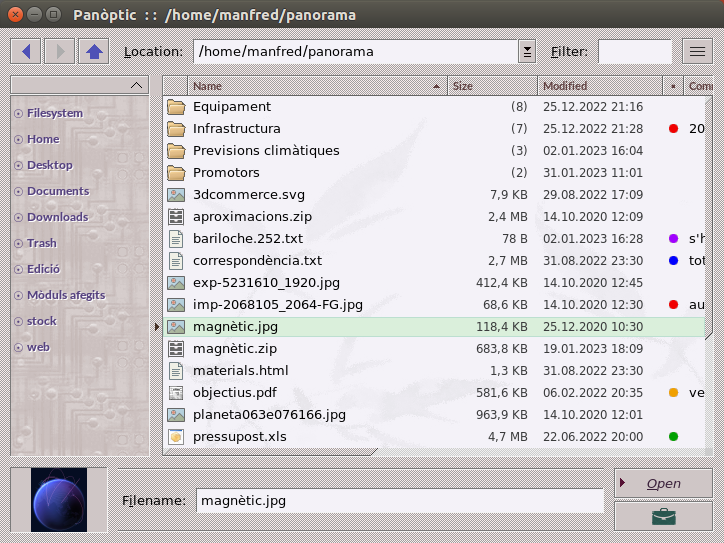
It's the task of your file manager to help you avoid such confusions, by showing all properties that identify a file in such a way that they can be read at a glance. Panòptic will need no much more than 500 pixels on the screen to display all these basic properties together with a reference to the position of the file in your folder tree.
When that's not enough, showing a preview of the contents can be extremely helpful. Panòptic displays always a graphical representation of the current file within its main user interface, and that will allow you in most cases to recognize it instantly.
Really effective search tools
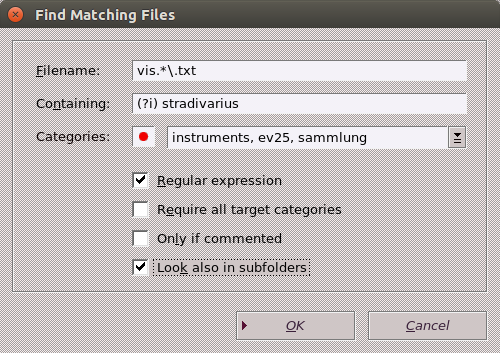
Nothing more essential for a file manager than searching. But finding the right target can be long and painful with the standard tools provided to this effect: the name of the file doesn't tell us very much sometimes and browsing the contents is not always possible.
To effectively keep track of your files there is nothing better than assigning them some custom tags that remain attached to the files themselves no matter how you rename or store them afterwards. A freely chosen tag and its associated categories can reflect directly your personal point of view and consequently will be easy for you to remember when looking for a file that was created longtime ago or that has wandered through many different folders.
Panòptic allows you to assign such tags on a per-user basis, so that your own categories don't conflict with those assigned by other users to the same files, and will keep that metadata present on all copies you make of these files under your account.
Personal comments, please!
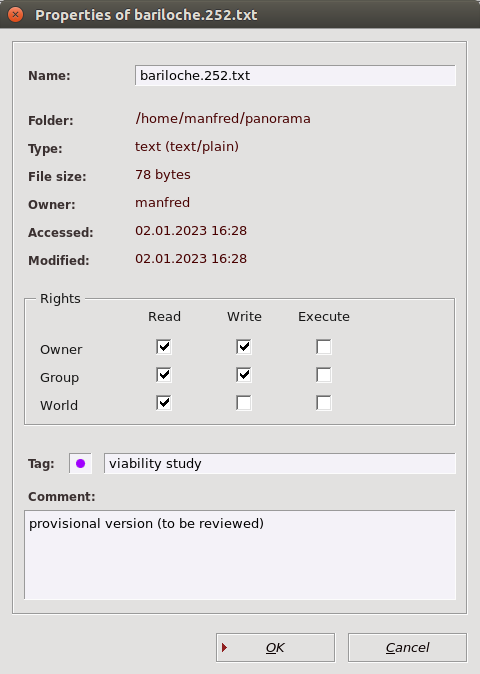
But that's not all: once you have found your file, you may need help to distinguish between its different versions, which are frequently a source of confusion even for experienced users. What's more natural in that situation that writing yourself a comment to explain what you have done to each file?
Such a comment should not be kept inside the file itself, because it's not part of its contents, nor should it be confined to a separate view, because then you will not see it when scanning quickly through your folders. In order to be really useful such a comment must appear together with the basic properties of the file, so that it can be read immediately, and that's what makes the main Panòptic interface much more helpful than any other file managers you know.
A selection on the fly
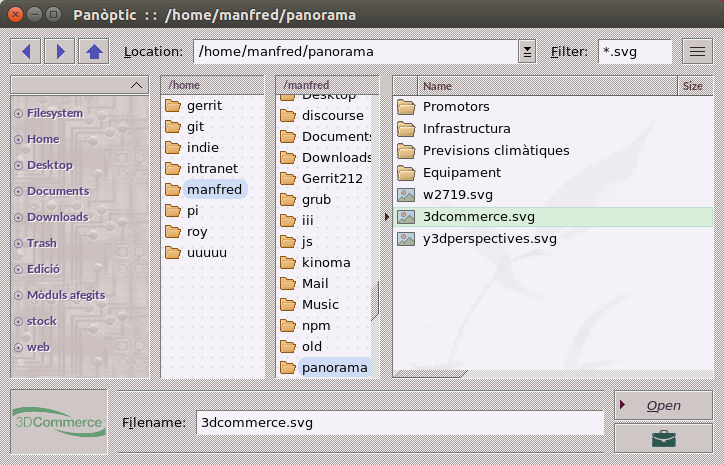
Filtering the contents of a folder with a file selection pattern was a feature that old file managers used to have and modern GUI tools have lost or replaced with more complex procedures that suffer from unwished side-effects, as they require you to open a new path loosing your current position.
Listing just the PNG-files within a crowded directory, for instance, should be as easy as writing: dir *.png the way it was done in the old CLI-times. Only, this filter can remain active on the target folder until you explicitely change it, just like your preferences about sorting or viewing, and that's what a GUI tool should provide as an added value.
Panòptic will allow you to work that way, applying filters while you move through your filesystem, and retrieving them whenever you return to that point, so that you don't need any additional view to create a quick selection. For selections that depend on more complex criteria you can use of course the search view or even the clipboard view, that create subsets of files where you can perform certain actions more comfortably.
A powerful clipboard
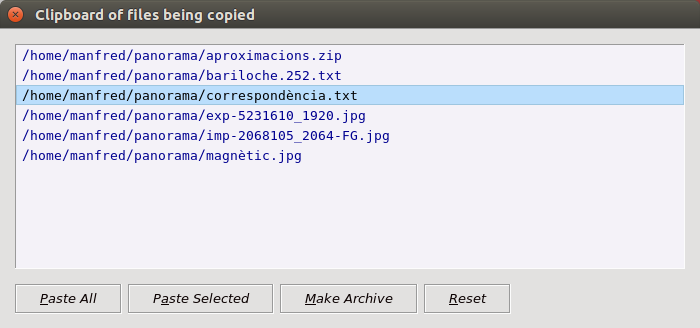
Copying and moving files is a basic feature that all file managers provide but none of them has been able to solve in a friendly and optimal way. To be really useful, the clipboard should not be a secret area kept in the internals of your system, but rather an open place where you can see what you have in the bag and choose which items you want to apply when pasting. Panòptic will give you such a clipboard, that can be checked anytime for its contents and tailored specifically to your needs when performing an action on it.
Moreover, the files you want to carry to a new place are not always together, they may be scattered through your filesystem and collecting them may not be feasible in a single step. In these cases you need a cumulative clipboard, where you can add progressively the files you need before reaching the target location. So incredible it may seem, no conventional file manager can provide you such an elementary feature.
Panòptic will place at your disposal a real carrier where you can keep adding files and folders as you go and select afterwards which ones you want to paste to each destination. It was time for a really powerful clipboard!
Custom entry points
When your file tree has become complex, reaching your target folders can be cumbersome and prone to errors. It's not representable that you have to do every day 10 steps to get into the folder you are working on, if your file manager can bring you directly there.
Look at the left panel on the main user interface: after the system-generated entries, that connect you to the main entry points of your filesystem, you will be able to create links with descriptive names that will bring you to your working folders with a single click. That will allow you to start every day your work quickly and securely.
Stored sessions
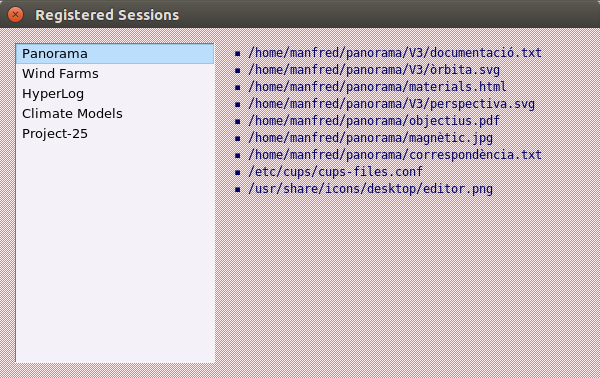
Once in your target location, you will ask the file manager to open your working files. But these are in part the same you opened the day before, if you are working on the same project. Again, why repeating the same steps day after day if this task can be done automatically?
A good file manager can learn from your gestures and take care of performing those protocolary actions for you, so as to free your mind from routine tasks and allow you to get going as quickly as possible. Panòptic will need just a sign from you to remember which files you have opened in the current session and to restore them on the spot the next day.
An open filesystem
If you are using a system file manager that takes care of protecting you from the dangers you may incur while browsing your own files, and hides some important folders that they see as private, it's perhaps time to tell your tutor you are already able to take care of yourself.
The navigation buttons you will find on the top-left corner of the main Panòptic interface will allow you to traverse the structure of your folders in all directions and to move freely through your whole filesystem.